Getting Started
DriveAuditr is a Google Sheets template with Apps Script that lets you audit who has access to all your shared files on Google Drive, for security compliance purposes.
It reads all your shared Google Drive file details (permissions) and lists them down into your spreadsheet. The script is safe because it only runs with read-only Drive permission.
Step 1: Copy the Google Sheets Template
Get your copy of the Google Sheets template (it already contains the Apps Script):
Get the Google Sheets Audit Template — a link will be sent to your email.
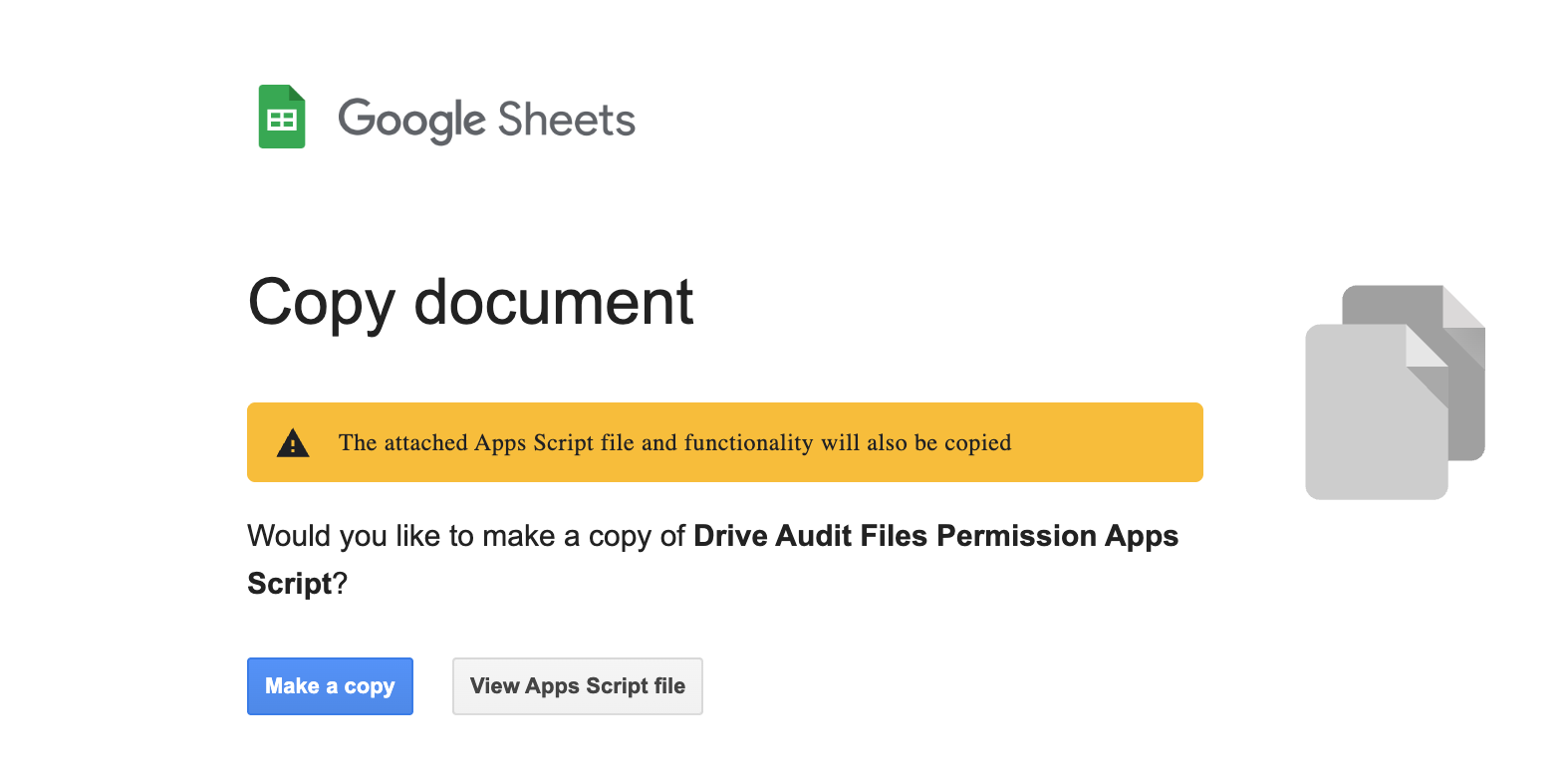
Click "Make a copy" to get your own copy of the template.
Step 2: Run Your First Audit
Once you have your copy of the template, you can use it via the "Drive Audit" menu:
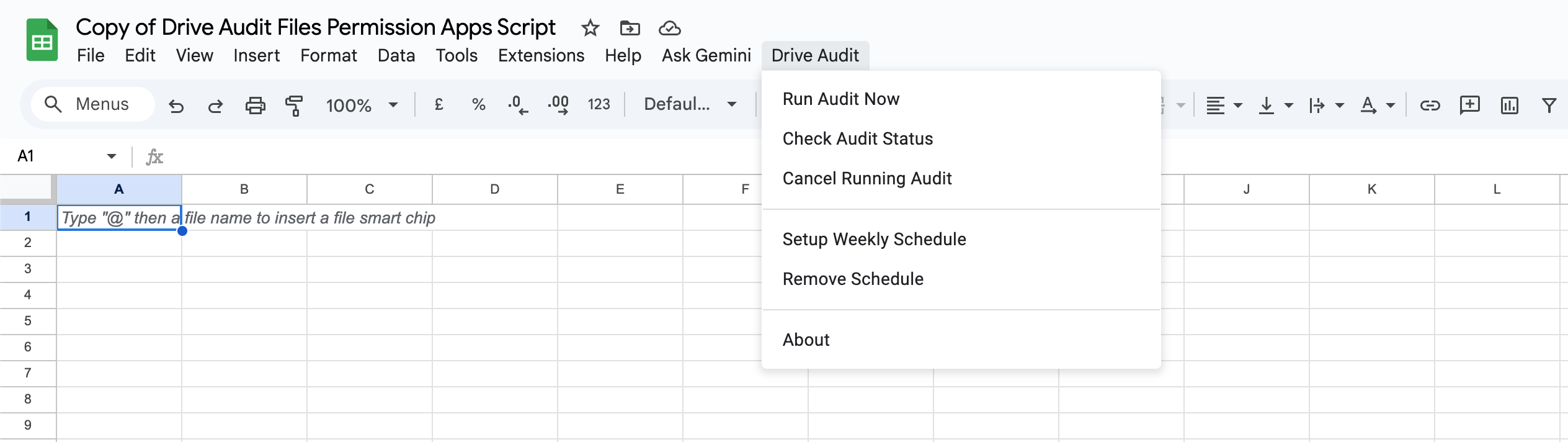
Click "Run Audit Now" to start your first audit.
Authorize the Script
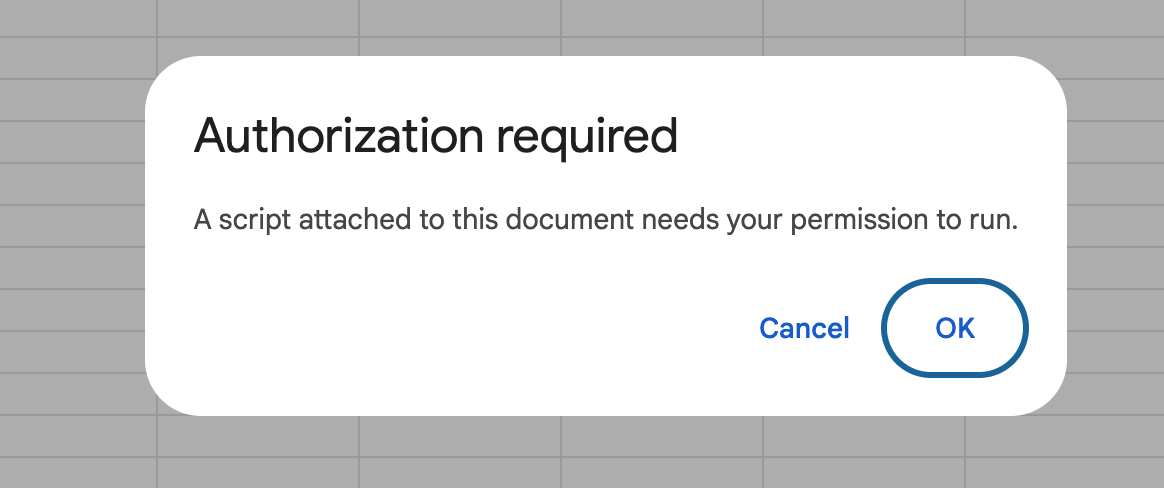
If "Authorization Required" pops up, click OK and allow it:
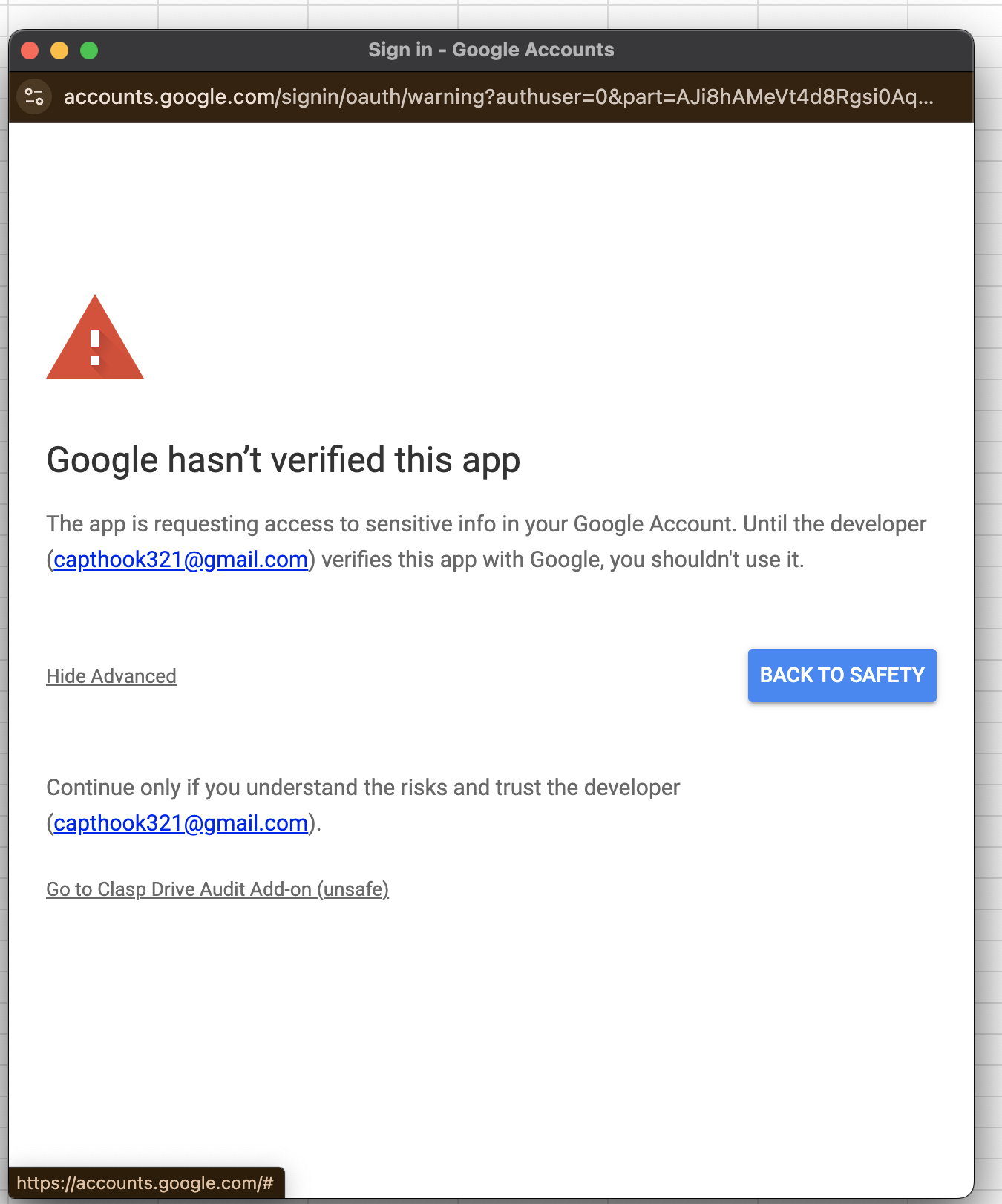
Click "Advanced" (the text link in the bottom left) and then click "Go to Clasp Drive Audit Add-on (unsafe)":
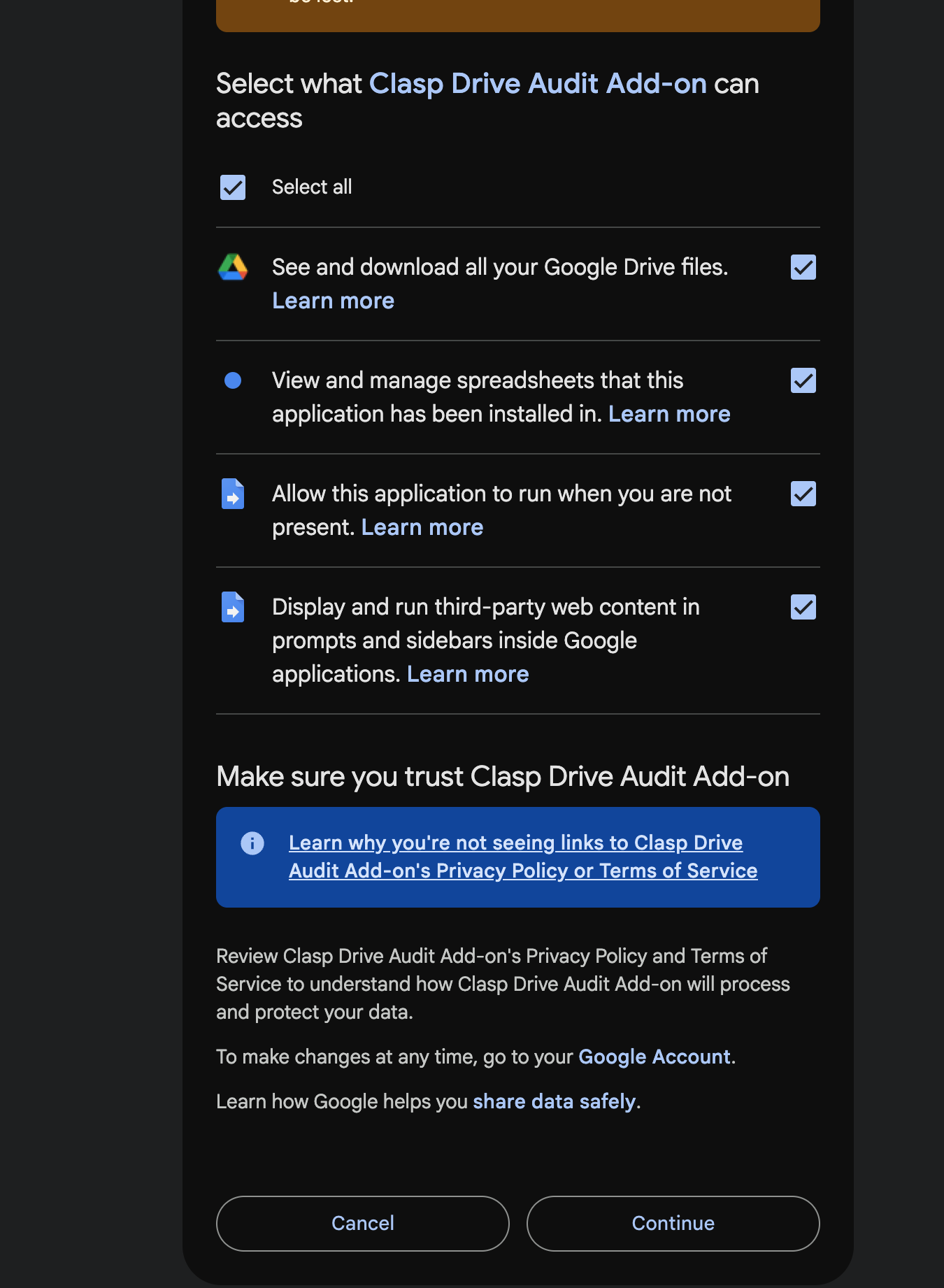
Click "Select all" to allow the permissions and click Continue:
View Audit Progress
After authorization, the audit starts automatically:
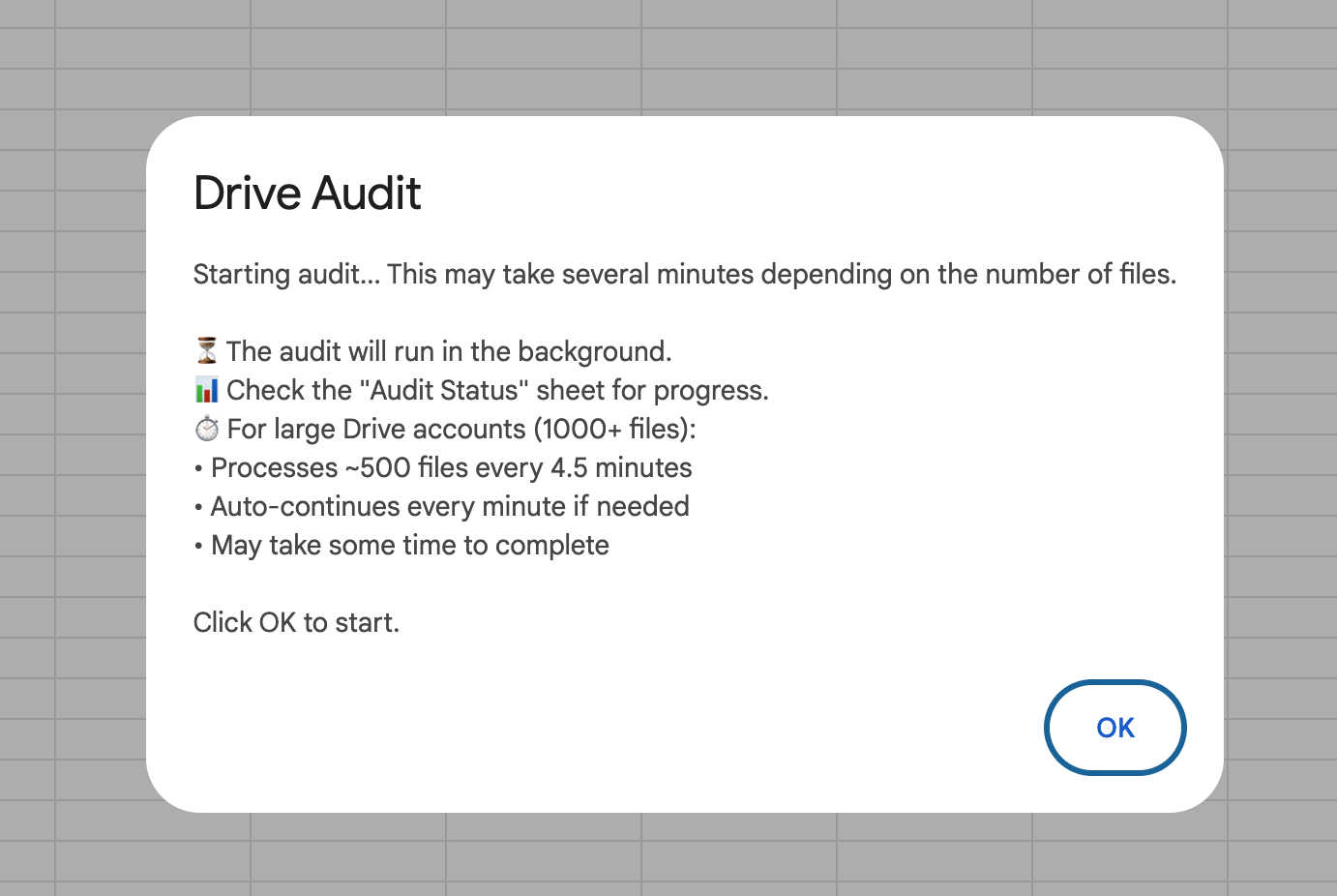
You will see "Drive Audit" and "Audit Status" sheets get appended.
The "Drive Audit" sheet contains all the details of your files and their permissions:
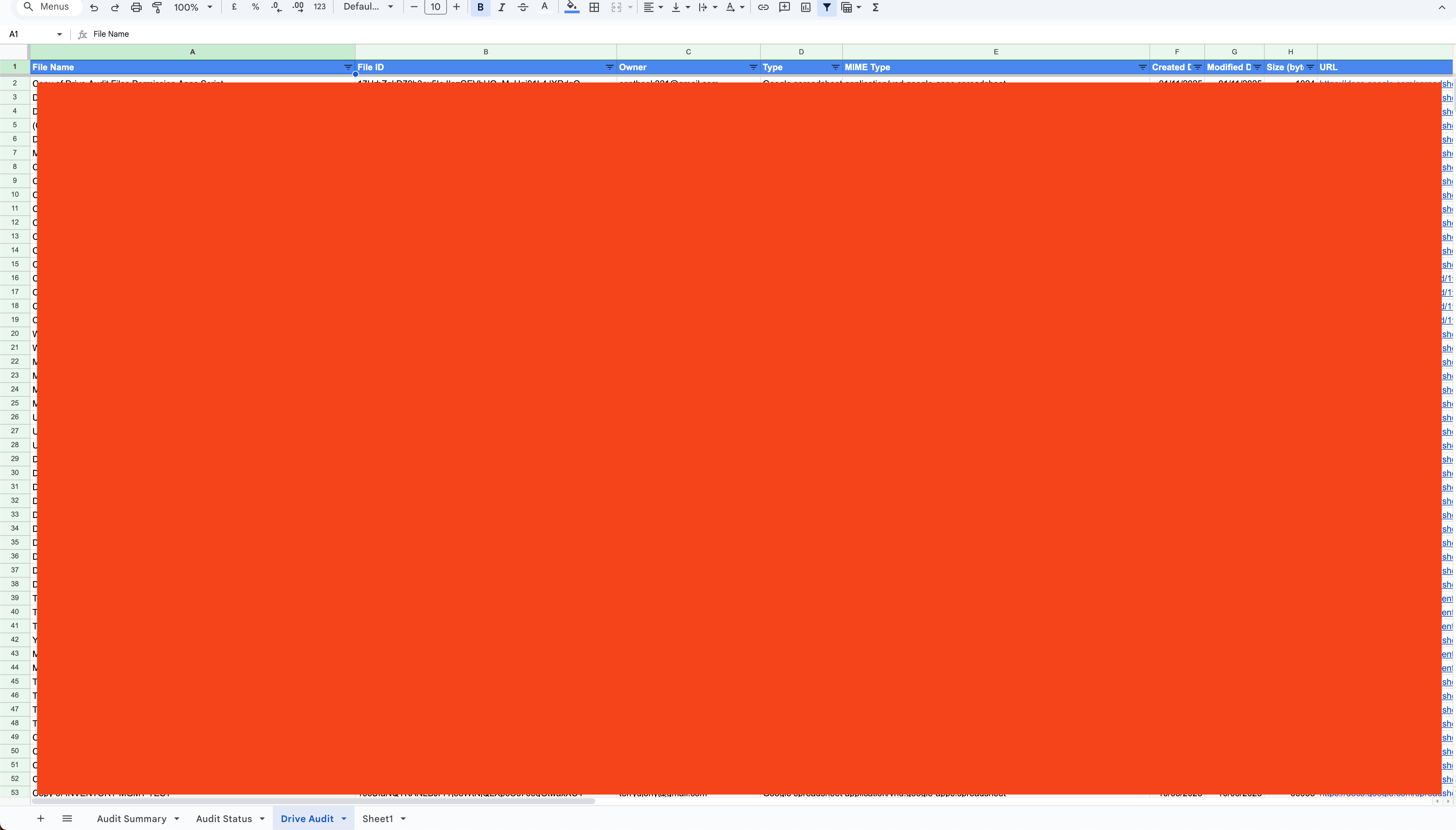
You can check the "Audit Status" sheet to see if the audit is completed or still running.
The audit process is not instant — it works in batches and may take longer depending on how many shared files you have. Just let it run in the background.
Weekly Audit
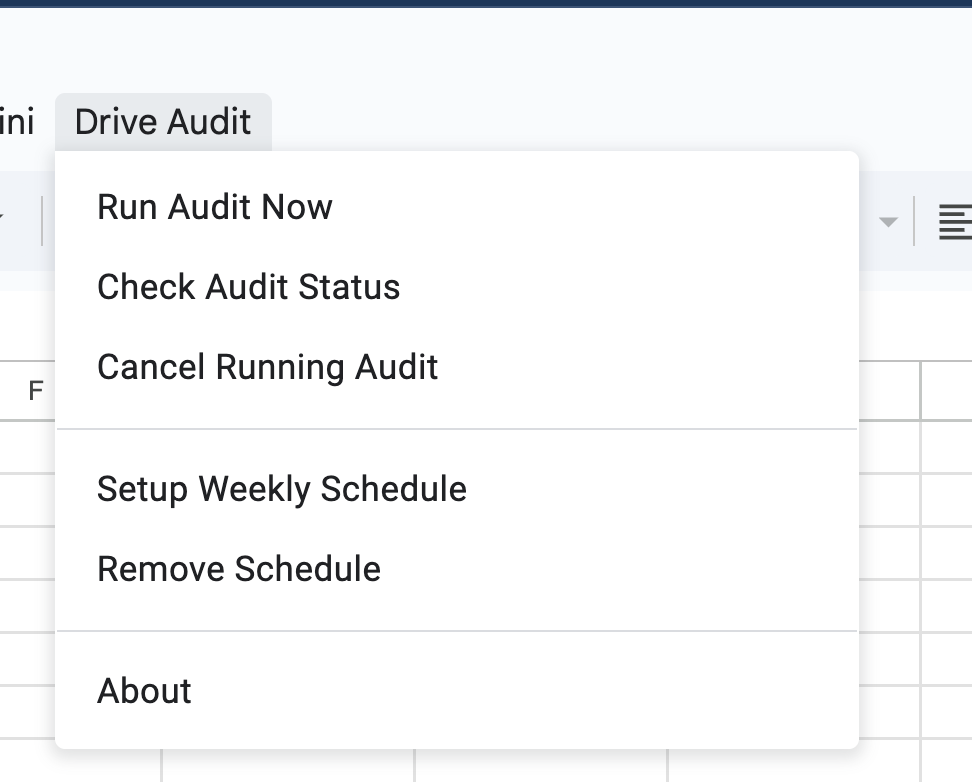
Besides running the audit on-demand, you can also set up an automated weekly audit with the "Setup Weekly Schedule" menu:
Open Source
This script is safe because it only runs with read-only Drive permission. You can view the full open-source code on GitHub.
Need Help?
If you have any questions, feel free to contact us at driveauditr@terrydjony.com.
Next Steps
Learn more about: